Getting started
Install the plugin
Everything starts from the Soundee panel inside Framer: inserting components, connecting your store, syncing the CMS.
Turn on developer tools
In Framer’s main menu, open the Plugins section and switch on Developer Tools. This is a one-time setting.
Open the plugin from its address
Open the Plugin menu in the toolbar and choose Open Development Plugin.
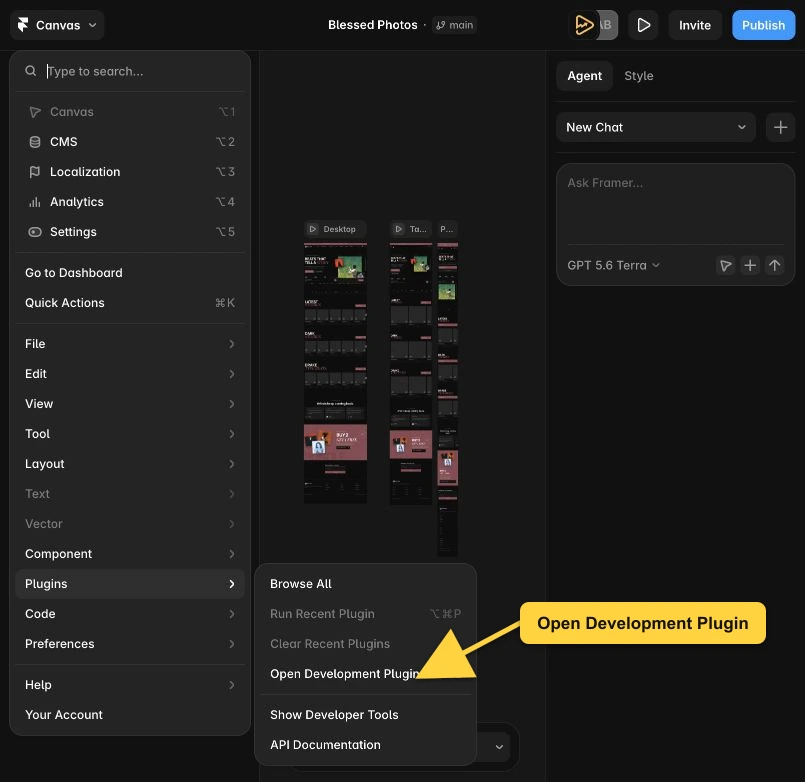
In the Canvas menu, open Plugins and choose Open Development Plugin. Framer looks for a plugin running on your own machine first. It will not find one, and offers you a field instead. Type
framer.soundee.comthere and press Enter.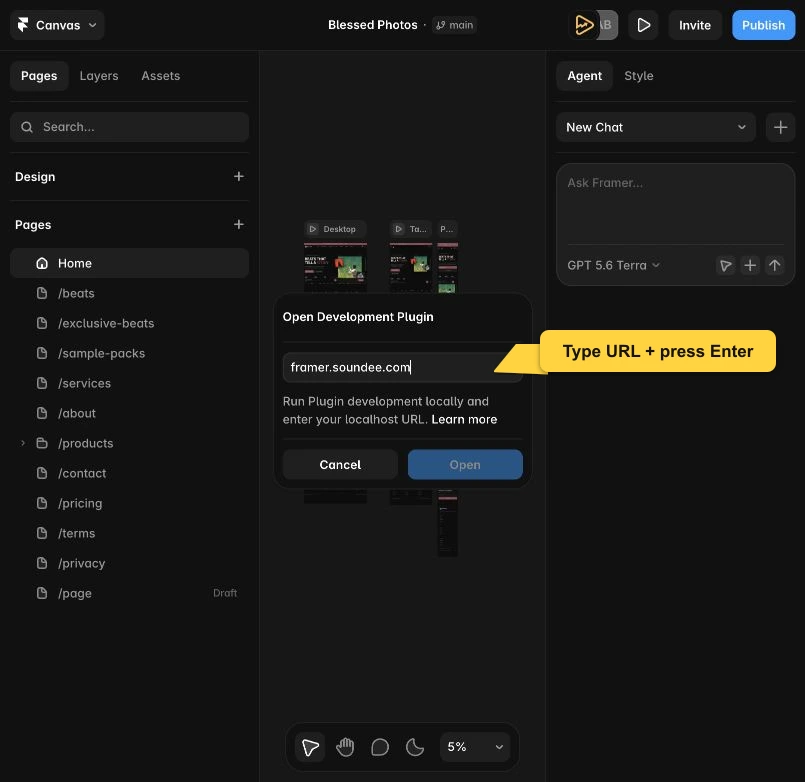
Type framer.soundee.comand press Enter. The blue Open button may still look disabled; this is a Framer interface bug and does not stop Enter from opening the plugin.Keep it open
The plugin docks beside your canvas and stays there while you work. You will come back to it for components, templates and the CMS.
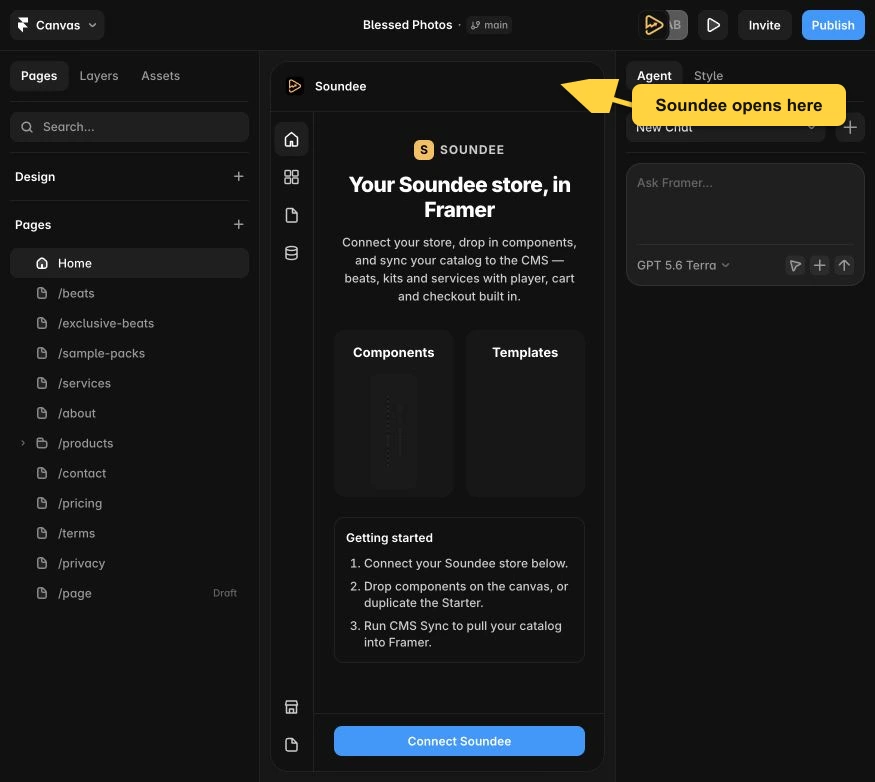
Soundee opens beside the canvas. Keep this panel open while you connect your store, add components or sync the CMS.
One name, two things
Soundee is the plugin panel. Soundee Setup is a component you place on the page. When a message tells you to open Soundee Setup, it means the component on the canvas — not the panel you are reading it in.