Getting started
Sync the CMS
Bringing your catalogue into Framer’s own CMS is what makes detail pages possible — a real page per track, with a real URL.
Open the Soundee collection
Open CMS Sync in the plugin. Choose Create Collection the first time, or Open Collection when it is already set up. During the beta the collection is called Soundee Products (beta).
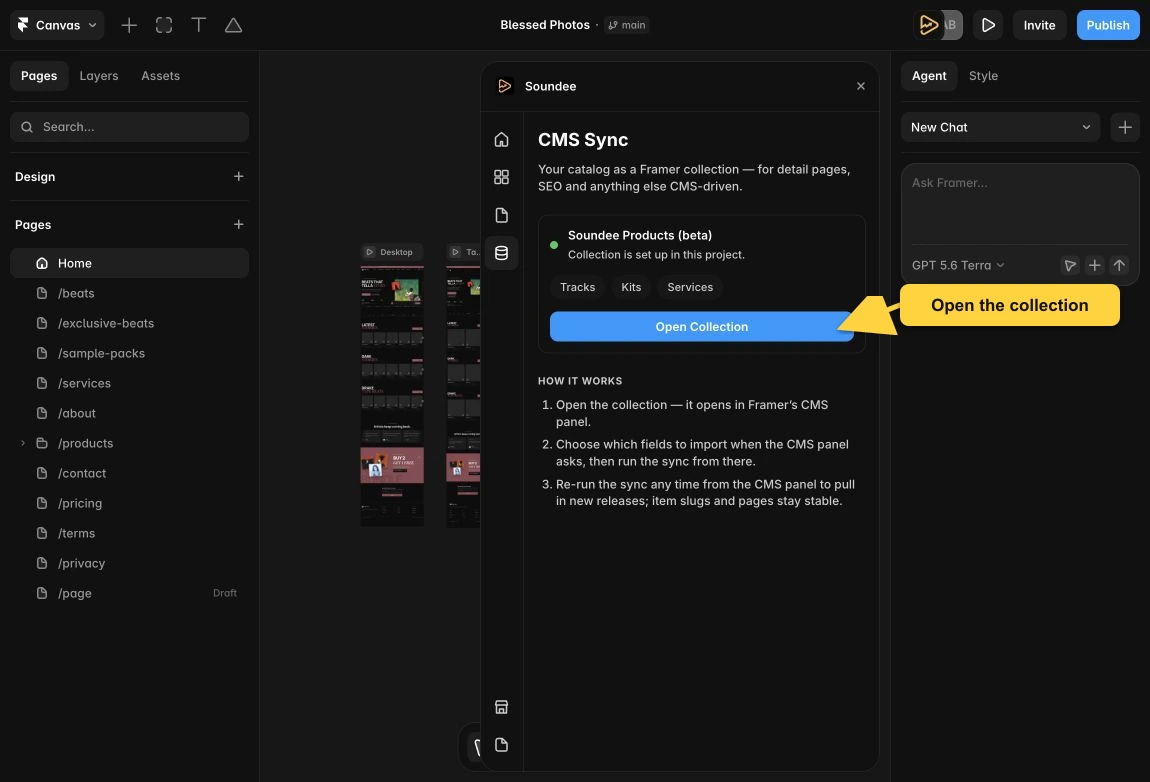
CMS Sync shows whether the collection exists. Open it to continue in Framer’s CMS. Choose what goes in
In the CMS, open Plugins and choose Soundee. Pick which types to sync — tracks, kits, services — and the maximum number of each.
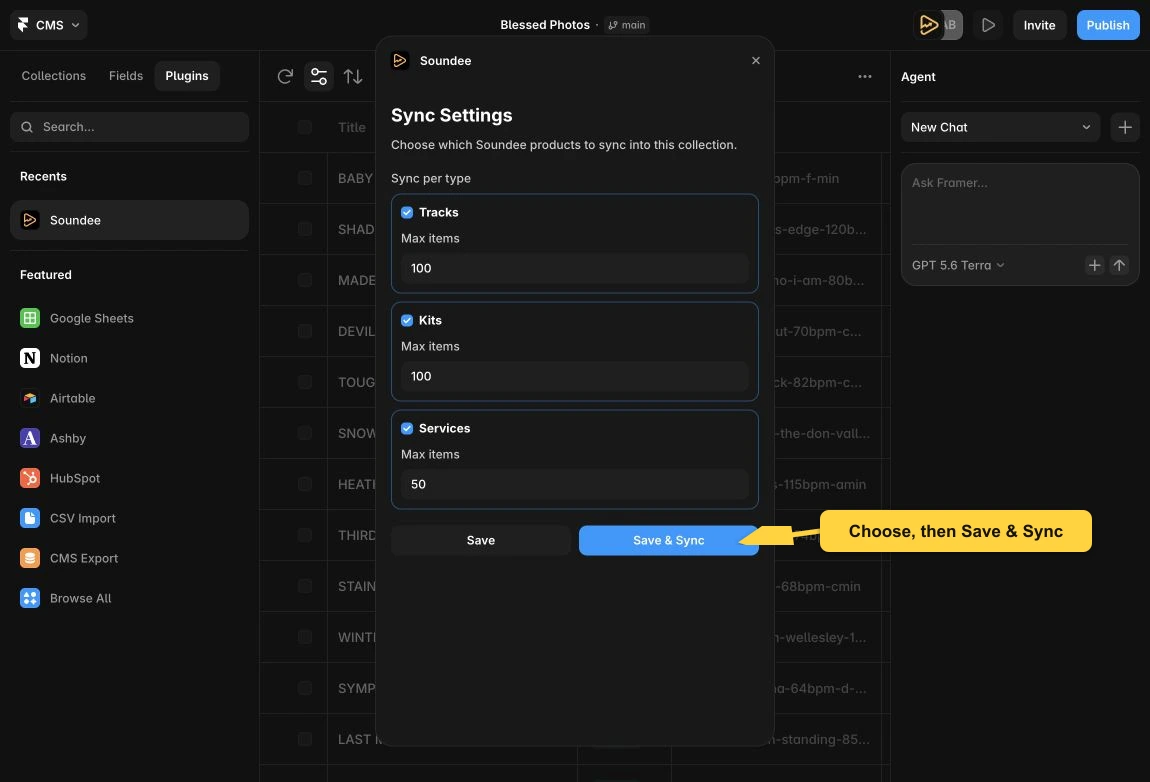
Keep only the product types you need, set an optional limit and choose Save & Sync. Run it
The sync fills the collection with your Soundee catalogue. Come back to Plugins → Soundee and run it again whenever your catalogue has moved on.
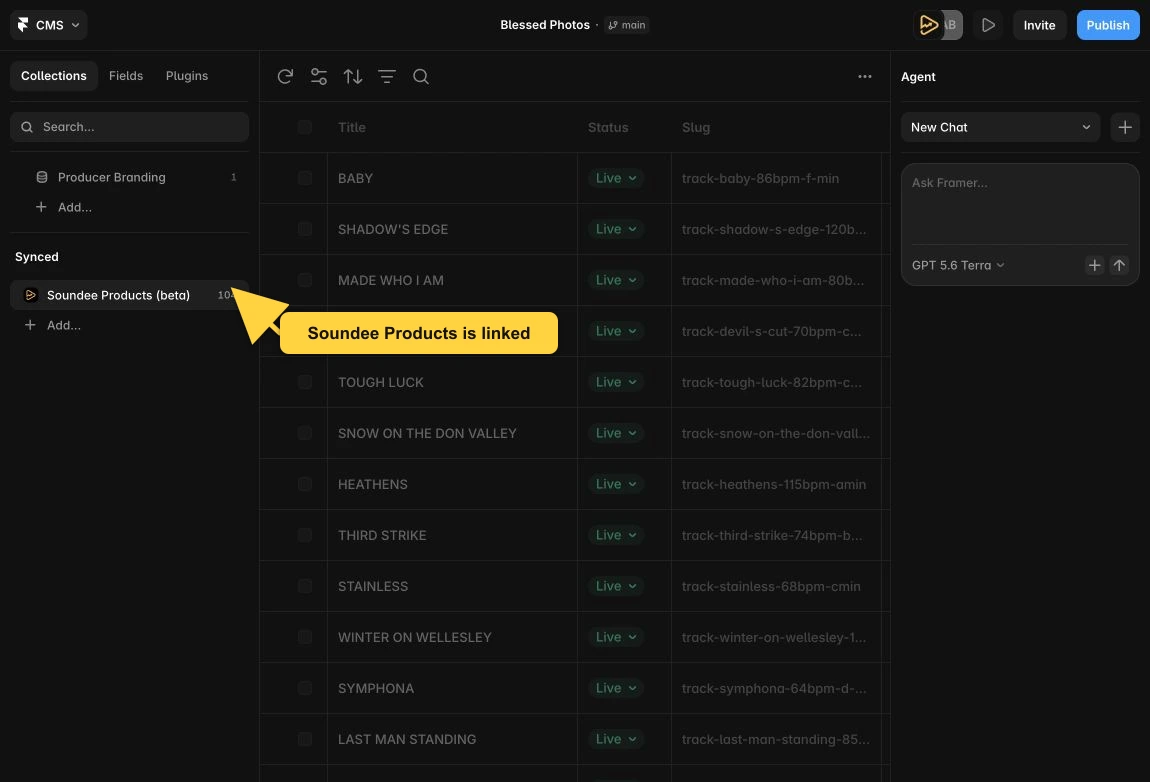
A linked collection appears under Synced. Its rows are now available to CMS pages and collection lists in Framer.
One collection, three types
Tracks, kits and services share a single collection and are told apart by an Entity Type field. Filter a Framer collection list on that field when you want a page of only one kind.
| Field | Holds |
|---|---|
| Title | The name of the track, kit or service. |
| Entity Type | track, kit or service. |
| Entity ID | Its id in Soundee. |
| Price | The listed price. |
| Artwork | The cover image. |
| Published | Whether it is live in your Soundee store. |
| Raw JSON | Everything else. This is the field detail-page components read. |
Raw JSON is the important one. On a detail page you drag it onto a component’s CMS JSON control, and that component then knows the whole track — price, licences, waveform, tags — without any further wiring.